Avast ye!
Drop the anchor, open your terminal, and prepare to build the machine.
On Monday, we reviewed the absolute best tools for cloning your face and voice. If you followed those orders, you now possess a Digital Twin on a platform like HeyGen or Synthesia. You have achieved the first step of digital leverage: you no longer have to sit in front of a camera.
But if you stop there, you have fallen into the “Manual Trap.”
Having an AI avatar is an incredible asset, but if you still have to wake up every morning, open a Google Doc, write a script, log into HeyGen, paste the script, click render, download the video, and upload it to TikTok… you haven’t built an automated business. You have just built a slightly faster manual business.
You replaced the camera, but you are still the bottleneck.
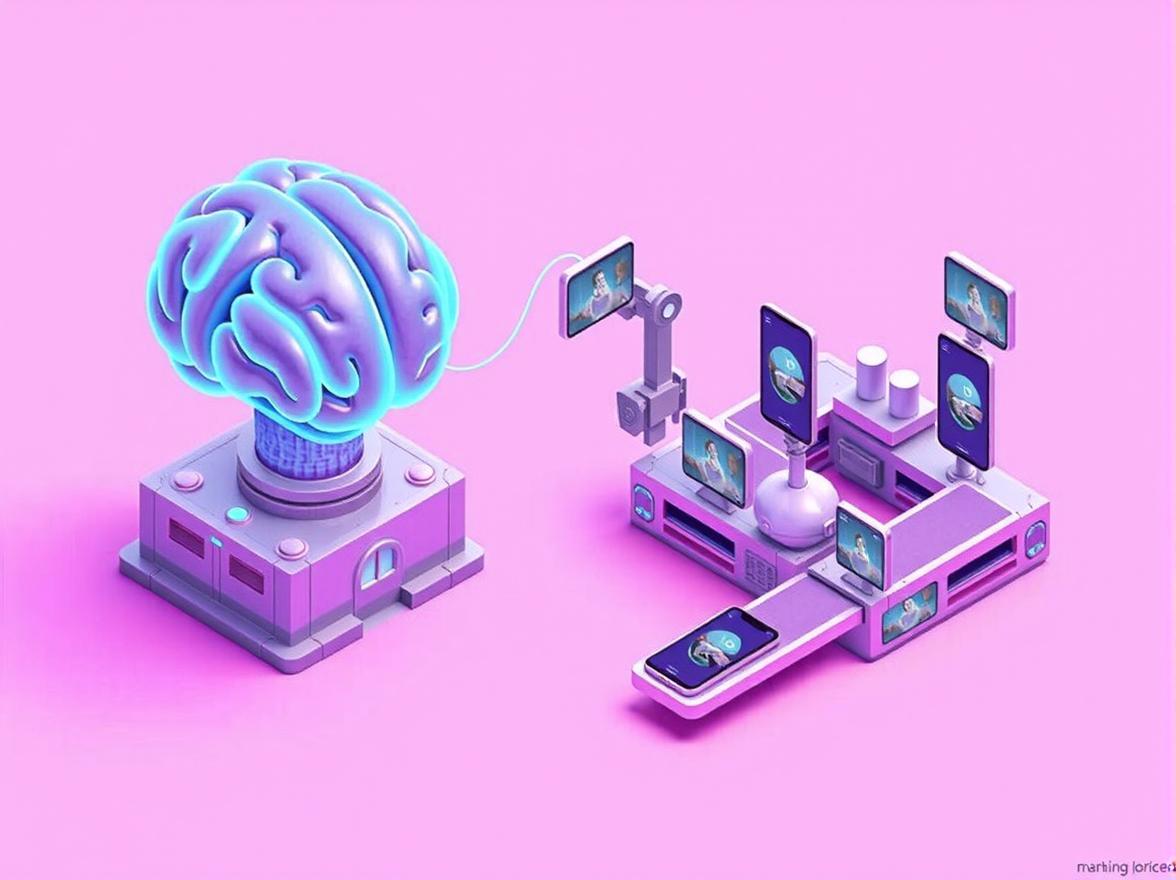
To truly automate AI influencer channel operations, you must disconnect yourself from the daily process entirely. You need to connect your digital face (the avatar) to an autonomous digital brain (an LLM) and wire them together with digital nerves (automations).
Today, we are building the “Zero-Click” Influencer. This is the exact system architecture required to automatically write, generate, and deliver a daily video without you ever touching a keyboard.
Let’s build the factory.
The Architecture of Autonomy: How It Works
Before we dive into the specific modules, you need to understand the macro view of the system we are building. A true “Zero-Click” pipeline requires four distinct components working in perfect harmony:
- The Trigger: A scheduled event (e.g., “Every morning at 6:00 AM”).
- The Brain (Idea Engine): An AI model (like ChatGPT-4o) that writes a fresh, unique script based on a set of rules you define.
- The Face (The Avatar API): The video generator (like HeyGen) that receives the script and renders the video.
- The Delivery: The destination where the finished video is stored, ready for automatic scheduling.
We are going to use either Make.com’s advanced AI integrations or Zapier as our central command center. These platforms act as the digital glue, passing data from the Brain to the Face.
If you build this correctly once, it will run forever.
Step 1: The “Idea Engine” (Automating the Script)
The hardest part of daily content creation isn’t filming; it is ideation. To remove yourself from the pipeline, you have to engineer a prompt that can generate endless, high-quality, non-repetitive scripts without human supervision.
The easiest way to guarantee engaging, repeatable content for an AI avatar is to create an Educational Quiz Channel.
People love testing their knowledge on social media. A daily trivia question forces engagement (people guessing in the comments) and guarantees high watch time (people waiting for the answer at the end).
💡Personal Note:
I rely heavily on daily quizzes to force memory retention, especially when I am studying complex, technical subjects like penetration testing and cybersecurity frameworks. Instead of just reading dry flashcards, I built this exact “Idea Engine” to generate a new hacking concept quiz every morning. The AI avatar reads the scenario, gives a countdown, and then explains the correct answer. It turns raw, dense information into a highly engaging, automated daily video show that helps me learn while simultaneously building an audience.
The Master Prompt
To make this work in an automated sequence, you must use strict prompt engineering. If the LLM outputs extra conversational text (like “Sure, here is your script!”), the video avatar will literally read those words out loud.
You must command the AI to output only the spoken text.
For a comprehensive guide on forcing LLMs to output exact formats without hallucinated conversational filler, I highly recommend studying the OpenAI Prompt Engineering Guidelines.
Here is the exact System Prompt you will load into your automation tool:
Role: You are an expert TikTok scriptwriter specializing in highly engaging, short-form daily trivia quizzes about [Your Topic, e.g., Cybersecurity / History / Science].
Task: Write a 30-second script for an AI video avatar.
Format Rules (CRITICAL):
- Do NOT include any conversational filler (e.g., “Here is the script”).
- Do NOT include stage directions (e.g., “[Smiles]” or “[Pauses]”).
- Output ONLY the exact words the avatar will speak.
Structure:
- Hook (0-3s): “Can you answer this expert-level [Topic] question? Only 1% of people get this right.”
- The Question (3-15s): Provide a challenging, interesting multiple-choice question with 3 options.
- The Pause (15-18s): “Lock in your answer in the comments. Three… Two… One…”
- The Answer & Explanation (18-30s): “The correct answer is [Answer]. Here is why…”
Constraint: The question must be unique and never repeat a previously covered concept.
This prompt is your “Idea Engine.” It ensures that every time the automation runs, the output is perfectly formatted for a text-to-video API.
Step 2: The “Connector” (Wiring the Brain to the Face)
Now that we have the engine, we need the chassis.
We are going to use Make.com (formerly Integromat) for this build. While Zapier is more famous, Make is vastly superior for complex AI workflows because its visual interface allows for multi-step logic and cheaper API calls. If you are new to visual programming, the Zapier guide to AI automation is a great primer on the underlying logic, but we are executing this in Make.
Module 1: The Trigger (The Clock)
Start by creating a new scenario in Make.com.
- App: Choose the “Tools” or “Schedule” module.
- Action: Set it to trigger at a specific interval. If you want daily content, set it to run every day at 4:00 AM. This gives the system plenty of time to render the video before peak morning posting hours.
Module 2: The Brain (OpenAI / ChatGPT)
Next, connect the trigger to an LLM.
- App: OpenAI (ChatGPT).
- Action: “Create a Chat Completion.”
- Model: Select
gpt-4oorgpt-4-turbo. - Messages: In the “System” message, paste the Master Prompt we created in Step 1.
Pro-Tip for Advanced Creators: If you want the script to be based on breaking news rather than a quiz, you can add an RSS Feed module before the OpenAI module. The RSS module pulls the top headline from TechCrunch, passes that text to OpenAI, and commands the AI to “Write a 30-second news summary script based on this article.”
Module 3: The Delay (The Safety Net)
APIs can sometimes time out or process slower than expected.
- App: Tools.
- Action: “Sleep.”
- Setting: Add a 10-second delay. This ensures the OpenAI module has completely finished generating the text and the connection is stable before we send that heavy text payload to the video rendering engine.
Module 4: The Face (HeyGen API)
This is where the magic happens. We take the script from ChatGPT and inject it directly into your digital clone.
- App: HTTP (Make a request) OR the native HeyGen App if available in your region.
- Action: You will make a POST request to the HeyGen API to generate a video.
To execute this, you will need your HeyGen API key and your specific Avatar ID (which tells the system which digital clone to use). You can find your Avatar ID and the exact JSON payload formatting in the official HeyGen API Documentation.
The Payload Logic:
In the API request body, you will map the output from Module 2 (the OpenAI script) into the input_text field of the HeyGen API.
It looks something like this:"text": "{{1.choices[].message.content}}"
When this module fires, HeyGen wakes up your avatar, feeds it the script, and begins rendering the video on their servers.
Step 3: The “Delivery” (Webhooks and the Waiting Room)
If you stop at Step 2, your automation will fail.
Here is the biggest trap novice automators fall into: Asynchronous APIs.
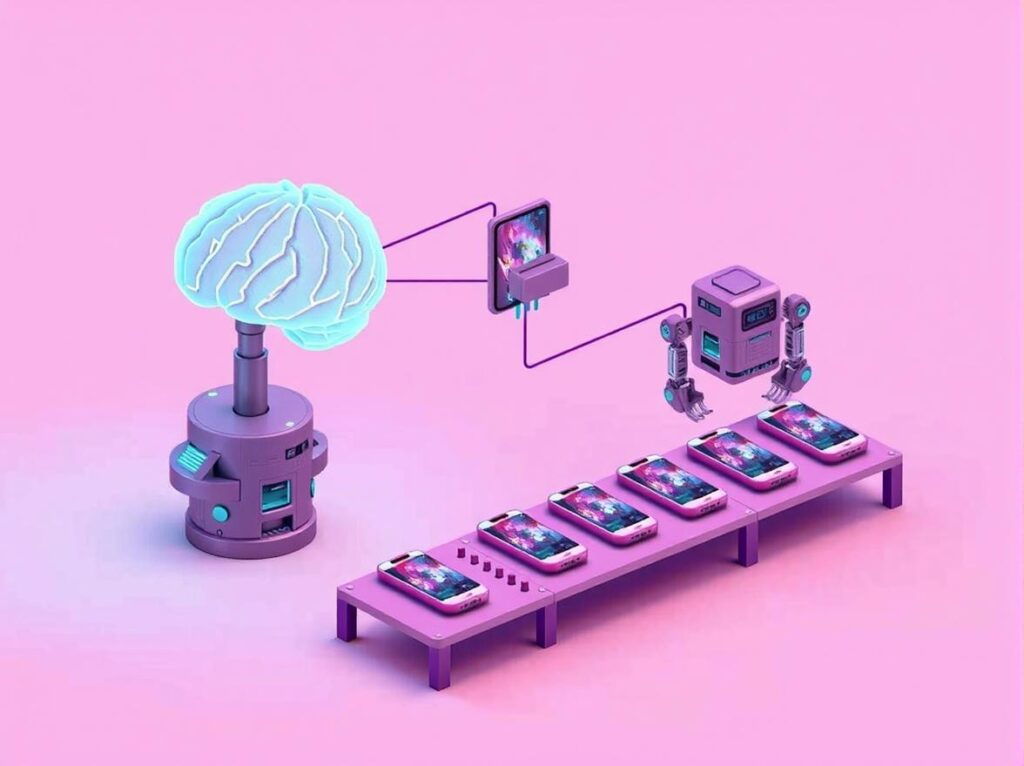
When Make.com sends your script to ChatGPT, ChatGPT replies almost instantly with the text. That is a synchronous request. But video rendering is heavy. When Make.com sends that script to HeyGen, HeyGen cannot send the video back instantly. It takes 3 to 10 minutes to render the avatar, process the lip-sync, and encode the MP4.
If Make.com just sat there waiting for the video, the automation would time out and crash.
To solve this, we use a Webhook. Think of a Webhook as a digital mailbox sitting on your porch. You tell HeyGen: “I am going to work on other things. When the video is finally done, drop the download link into this mailbox.”
Module 5: Setting Up the Make.com Webhook
Instead of having one massive automation that crashes, we split the brain into two parts.
- Scenario A (The Request): Trigger -> ChatGPT writes script -> HeyGen API starts rendering.
- Scenario B (The Receiver): Webhook catches finished video -> Downloads file -> Uploads to social media.
In Make.com, create a new scenario and select the “Custom Webhook” module as your trigger. Make will generate a unique URL for you.
Go back to Scenario A, and in your HeyGen API payload, you will include that Webhook URL. You are basically passing HeyGen a return address.
For the exact syntax on how to format this return address, consult the HeyGen Webhook Event Documentation. It explains how the API sends a video.completed event containing the final MP4 download URL.
💡Personal Note:
I recently spun up an experimental faceless channel dedicated entirely to bank bonus churning. It uses an RSS feed to monitor financial blogs for new account sign-up bonuses. When a new $300 checking offer drops, the AI writes a script explaining the direct deposit requirements, and my avatar renders the video. I don’t even read the terms myself anymore; the avatar does it for me, and the referral links generate cash on autopilot. Setting up the webhook was frustrating for a day, but unlocking that capability is what makes the whole system truly “zero-click.”
Once HeyGen finishes the video, it fires an invisible signal to your Make.com Webhook. Scenario B instantly wakes up, grabs the payload, and extracts the URL of your finished masterpiece.
If you are new to the concept of API listeners, Make.com’s official guide to Webhooks is mandatory reading. It is the fundamental building block of advanced internet automation.
Step 4: The “Output” (Storage and Auto-Posting)
We have the finished video URL. Now we need to put it somewhere useful.
Leaving the video on HeyGen’s servers does you no good. You need to pull it into your own ecosystem so it can be distributed.
Module 6: HTTP “Get a File”
In Scenario B, immediately following your Webhook trigger, add an HTTP module.
- Action: “Get a File.”
- URL: Map the URL variable that was delivered by the HeyGen Webhook.
This step physically downloads the MP4 file from HeyGen’s servers into Make.com’s temporary memory.
Module 7: Google Drive (The Vault)
Next, connect a Google Drive module.
- Action: “Upload a File.”
- Destination: Select a specific folder (e.g., “AI Avatar – Ready to Post”).
- File: Map the downloaded file from the HTTP module.
At this exact moment, you have a fully automated production studio. Every morning, without you lifting a finger, a brand new, highly engaging video drops into your Google Drive folder.
Module 8: The Social Media Delivery (Optional but Lethal)
If you want to reach the absolute zenith of the “Zero-Click” Influencer, you can add one final module to auto-publish the video.
- App: YouTube, Facebook Pages, or a scheduling tool like Buffer.
- Action: “Upload a Video.”
- Details: You can even use the original ChatGPT module from Scenario A to write the YouTube description and tags, pass those variables through the webhook, and inject them directly into the YouTube upload module.
To understand the specific API quotas and formatting requirements for direct social publishing, review the YouTube Data API v3 Documentation. Direct video uploads require careful handling of OAuth 2.0 permissions.
💡Personal Note:
There is a massive physical relief to this system. Earlier this year, I experienced terrible shoulder pain after incorporating heavy dips back into my workout routine. I physically couldn’t sit at a desk to type or hold a camera for long periods. Because my video pipeline was automated, my channels kept publishing daily. The algorithm never knew I was injured. Your business should never be held hostage by your physical body.
The Cost Analysis of Autonomy
“Captain, this sounds expensive.”
Let’s do the math. What does it cost to run a daily, high-quality video channel using this architecture?
- Make.com: The “Core” plan costs ~$10.50/month and gives you 10,000 operations. This workflow uses maybe 10 operations per day.
- OpenAI (ChatGPT API): Writing a 30-second script costs fractions of a cent. Call it $1.00/month.
- HeyGen / Synthesia: This is the bulk of the cost. A standard creator plan runs about $29 to $49/month for a set number of rendering minutes. A 30-second video daily equals 15 minutes of rendering a month.
Total Cost: ~$50 a month.
If you hired a freelance scriptwriter, a videographer, and an actor to produce 30 videos a month, it would cost you $3,000 minimum. You are getting a full production agency for the price of a gym membership.
For a broader perspective on how automation is deflating the cost of digital labor, McKinsey’s report on generative AI economics illustrates that marketing and customer interaction are seeing the highest ROI from LLM integration, specifically because it reduces the cost of personalized content creation to near zero.
Conclusion: From Creator to Network Executive
The internet used to be a place where the hardest worker won. If you could film 5 videos a day, you beat the guy filming 1.
In 2026, the hardest worker loses. The system architect wins.
By wiring ChatGPT to HeyGen using Make.com, you are stepping off the content treadmill. You are no longer the talent; you are the producer. You are no longer a “creator”; you are a network executive overseeing a digital broadcasting empire.
You can build a channel about personal finance. You can build a channel about history. You can build a channel about software reviews. And you can run all three of them simultaneously while you sleep.
The API keys are in your hands. Build the machine.
Your Weekend Mission:
- Open a free Make.com account.
- Build “Scenario A” using a simple time trigger and an OpenAI script prompt.
- Don’t worry about the video API yet. Just get Make.com to drop a new text script into your Google Drive every morning.
Once you master the brain, connecting the face is easy.
Secure the perimeter, Captain.